Guides
Wake on Lan
To enable Wake on Lan you have to change some settings from your BIOS, the setting may differ between motherboards.
Example names: Wake on LAN, Resume on LAN, Power On by Onboard LAN or Power On By PCI-E
Bios Settings
- Disable Fastboot:
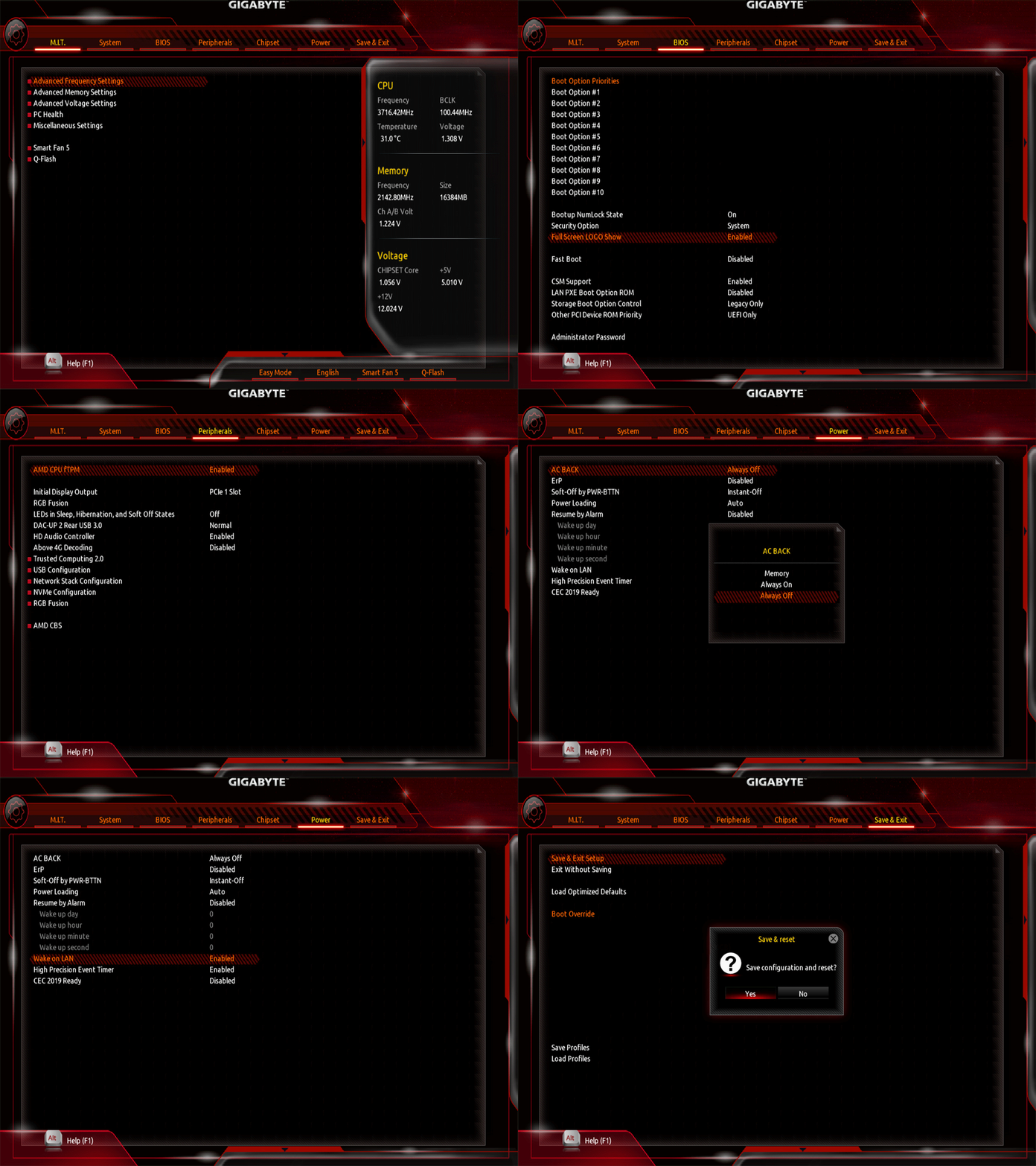
You need to disable the Fast Startup setting in the BIOS, and Enable Wake on Lan Setting
To open the Network Connections Panel, follow the instructions below.
Press Windows Key + R to open the Run dialog.
Write:
ncpa.cpl
Press Enter to open the Network Connections Panel directly.
You can open the network conections panel with many methods, the old method that i use:
Is through the Control Panel:
Control Panel > Network and Sharing Center > on your left panel, Change adapter settings.
Right click on your network adapter:

Right click at your Network Adapter then Properties > Configure > Yes > and then on the top, You can see the Power Managment tab and Enable Allow the computer to turn off this device to save power and Allow this device to wake the computer and the last setting Only allow a magic packet to wake the computer > Then click on the Advanced tab, at the Property scroll down until you see those settings:
Wake from power off state: EnableWake on Link (Wake on Link Setting): Enable/ForcedWake on Magic Packet: EnabledWake on Pattern Match: EnabledWake on Ping: DisabledWait for Link: OnEnergy Efficient Ethernet: Off/Disabled
You have to disable the Windows Hibernation, this command below, it disables the Hibernation for Windows.
powercfg /hibernate off
You have to disable the hibernation because the Wake on Lan might not work.
Some of the settings may change depend on the Hardware or Windows version you have.
For the Ethernet (Wake-on-LAN)
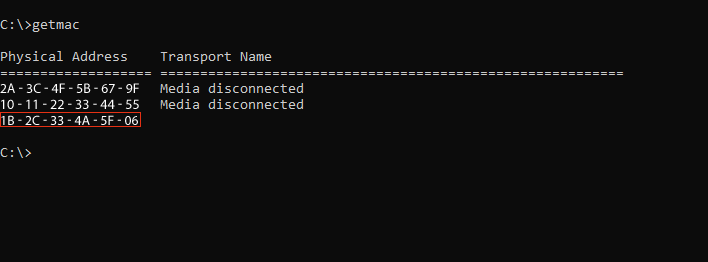
Open the Command Prompt and type getmac to see your MAC Adress and write down the last MAC Address you see. (You'll need it later)
for OpenWOL press The Plus button in the middle then give the device you want to remote open a name, right underneath write your MAC Adress, underneath that press Show Advaned settings and paste your ip adress of the device you want to open. If it is from an android open WIFI settings and open your network

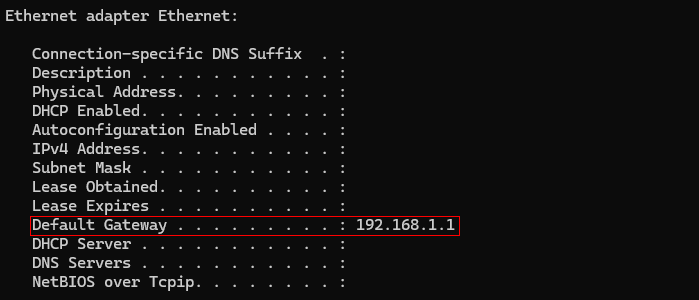
if your looking for the ip adress of your computer, open command promt and paste ipconfig /all and look for the Default Gateaway ip
after that press view more and scroll down until you see IP adress and that's what you'll paste in and for the last line use the port 9 but if it doesn't work use port 7 or 0
Tailscale
After completing setting up Tailscale in the device your second device, go to your profile > Subnet routing > add route in which the most used ones available for home networks are 255.0.0.0/8, 255.240.0.0/12, 255.255.0.0/16 and the most troubling one being 192.168.1.0/24 due to it being the most used one for almost ALL home networks which may interrupt google DNS or have problems with ip leaks (try to avoid it, use it as a last resort). After that you need to connect to your tailscale account through your browser and go to the concurrent lines > Network > Machines and pick the device you put the subroute from.
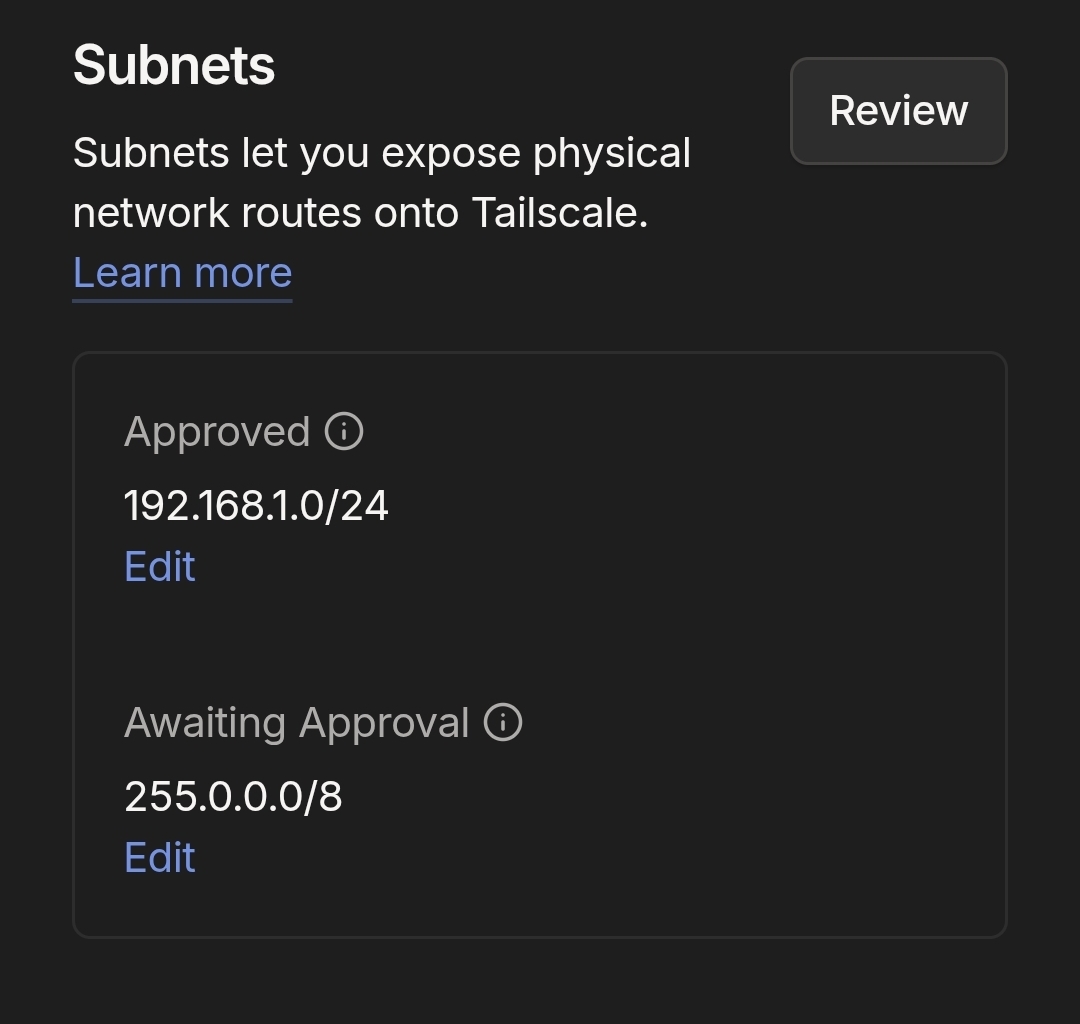
Then scroll down until you see Subnets press Review and approve the subnet route. Now you should be able to leave your Always on device home and open your computer from OPENWOL from any network you are connected to
WOL Apps
| Tool | Description | Supported platforms | Source |
|---|---|---|---|
| OpenWOL | Simple, private, and open-source Wake-on-LAN app that sends Magic Packets with one tap and can automatically trigger wake commands when connecting to a configured Wi-Fi network. | ||
| UpSnap | Self-hosted Wake-on-LAN web application with one-click device wake-up, scheduled events, port pinging, network discovery, IP tracking, custom shutdown commands, user management, themes, and Docker support. |